Approve the Clad app
Grant consent to your organization's Clad application once, and review what it adds to your tenant.
Before you begin
Role: Global Administrator or Privileged Role Administrator · Time: 5 minutes
Grant consent
Open the consent screen
Clad registers an application for your organization alone and sends you a setup link that carries its application ID and your Microsoft tenant ID. Opening that link fills in the values below. Confirm they match the ones in your Clad onboarding email.
Your values
Fill these in and the commands and links in this guide update to match. Values are kept in this browser only and never sent to Clad.
Then open Microsoft's consent screen and sign in with an administrator account from your organization.
Review the requested permissions
Microsoft's Permissions requested screen shows the application as Clad for your organization's name, published by DocShield Inc. with Microsoft's verified publisher badge. If the name, the publisher or the badge is different, select Cancel and contact security@cladinsurance.com.
The application requests three permissions:
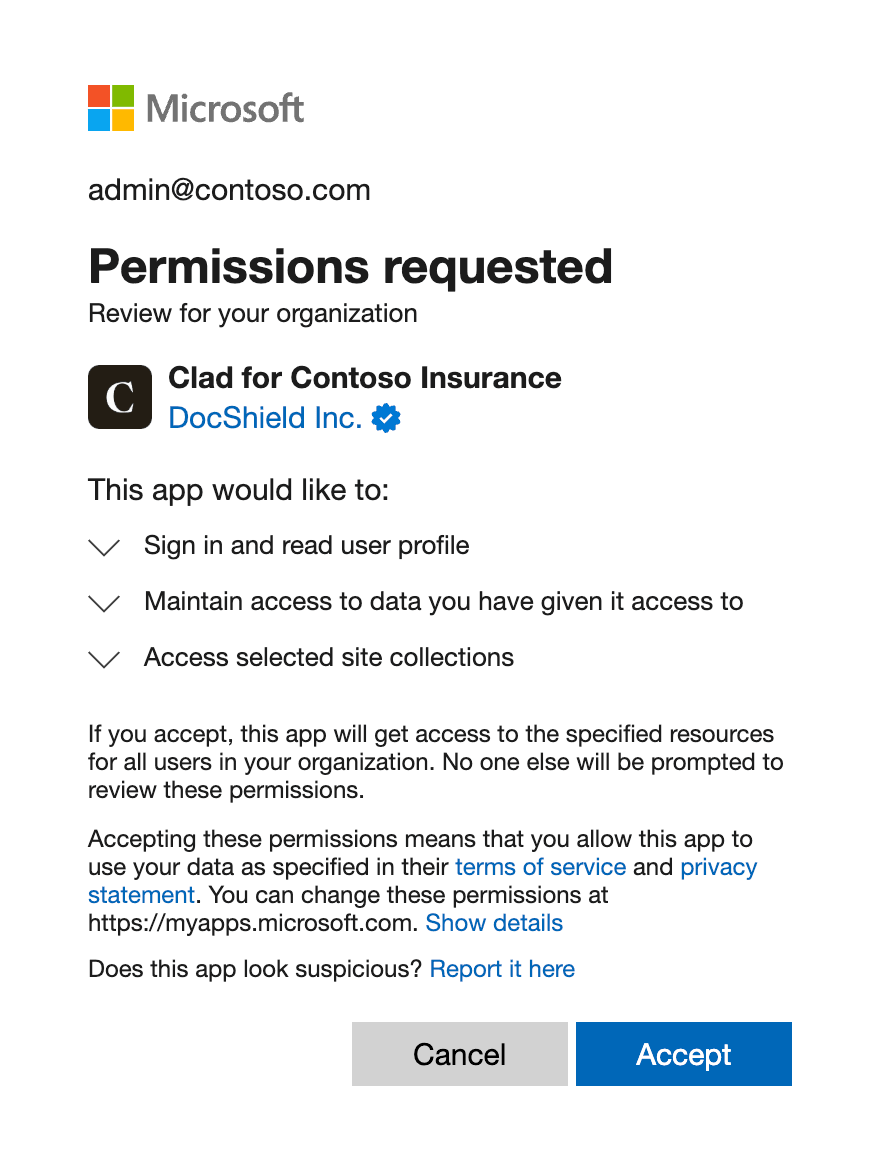
- 1The application name and its publisher. Yours reads Clad for your organization's name, with DocShield Inc. and the verified badge.
- 2The three permissions Clad requests, described below.
- 3Accept grants consent for your organization.
The screenshot is an example of the layout. Check the name and publisher against the description above, not against the image.
| Microsoft shows | Permission | Why Clad needs it |
|---|---|---|
| Sign in and read user profile | User.Read, with openid, profile, email | Lets employees sign in with their Microsoft account |
| Maintain access to data you have given it access to | offline_access | Keeps employees signed in to Clad between sessions |
| Access selected site collections | Sites.Selected | Lets you grant Clad individual SharePoint sites in SharePoint |
Mail access is granted in Exchange so you can limit it to a group; see Email.
Accept on behalf of your organization
Select Accept. Microsoft returns you to a Clad page that confirms the approval. The application now appears under Microsoft Entra admin center → Enterprise applications.
What this adds to your tenant
- An Enterprise application (service principal) named Clad for your organization's name. Its Overview page shows the same application ID as Your values above.
- Admin consent for the permissions above, visible under Enterprise applications → Clad for your organization → Permissions.
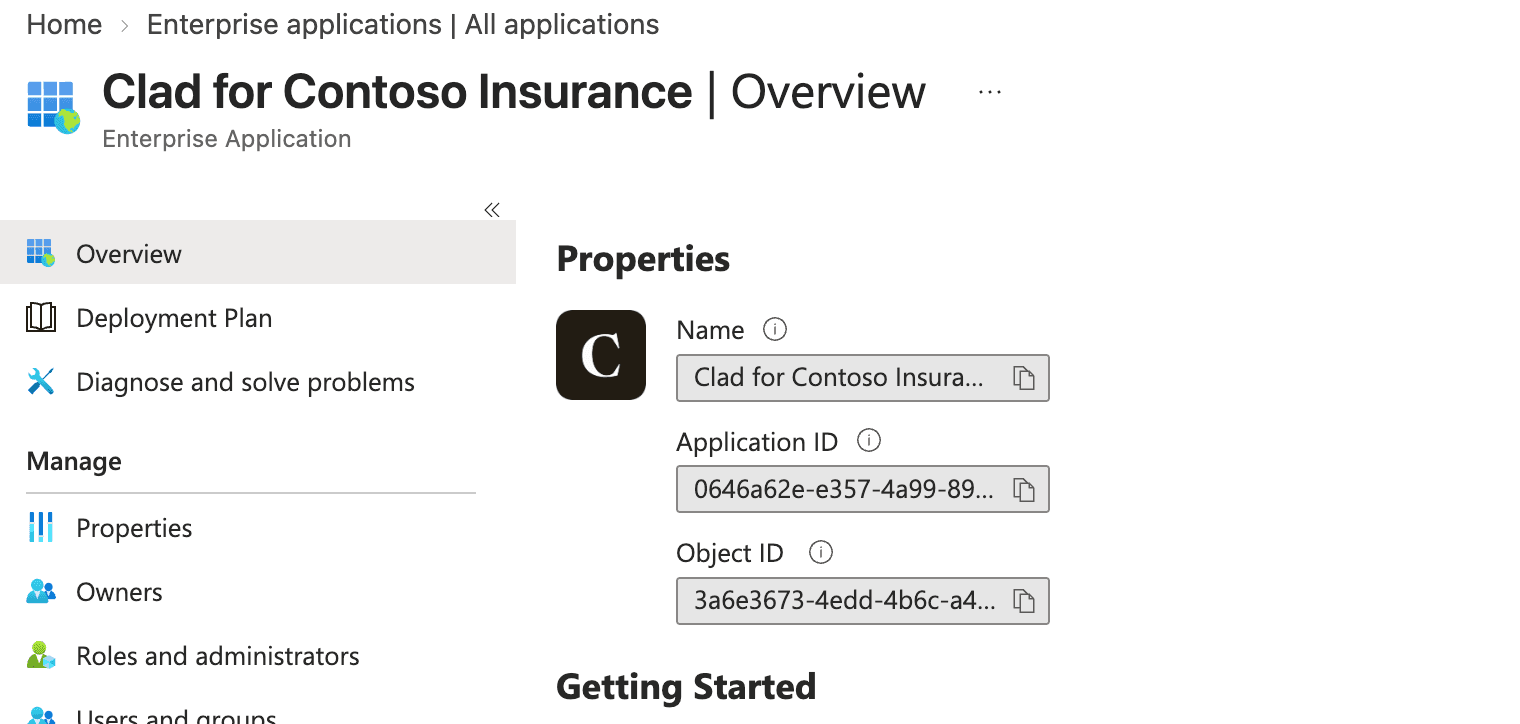
- 1Application ID: matches your Clad application ID.
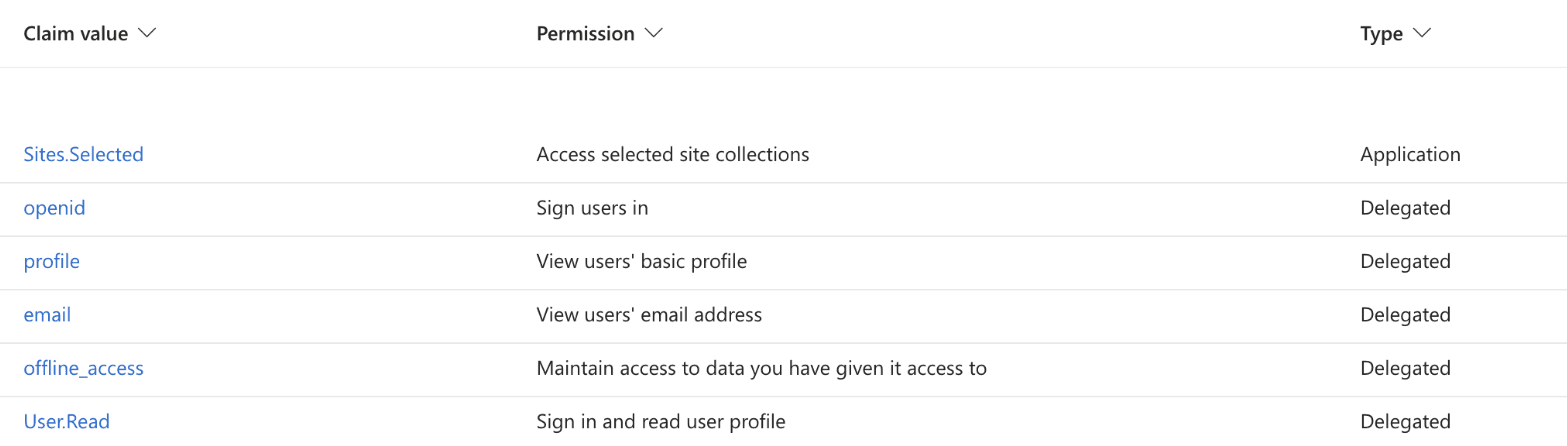
The first screenshot is an example. Your application is named Clad for your organization's name and has its own application ID and object ID.
No password, client secret or certificate is created in your tenant.
Next steps
Enable the capabilities you need: Email, Single sign-on and SharePoint.
Clad is operated by Docshield Inc. · Wilmington, DE · New York, NY