Email (Exchange Online)
Give Clad read and send access to the mailboxes of a group you manage.
Before you begin
Role: Exchange Administrator · Time: 15 minutes, then up to 2 hours to take effect · Requires: Clad app approved, Exchange Online prepared
Clad's mail access uses Exchange Online RBAC for Applications. Clad is assigned the
Application Mail.ReadWrite and Application Mail.Send roles with a management scope set to
the members of a mail-enabled security group you manage.
Your values
Fill these in and the commands and links in this guide update to match. Values are kept in this browser only and never sent to Clad.
Set up
Each block below is self-contained: it sets the values it needs, so you can run it in a new PowerShell window, including when you come back later to verify.
Create the mail access group
Create a mail-enabled security group containing the employees whose mailboxes Clad should use. Hiding it from the address list keeps it out of your employees' address book.
$Group = '<group-address>'Connect-ExchangeOnline$NewGroup = @{ Type = 'Security' Name = 'Clad Mail Access' Alias = 'clad-mail-access' PrimarySmtpAddress = $Group Members = '<employee-1>', '<employee-2>'}New-DistributionGroup @NewGroupSet-DistributionGroup $Group -HiddenFromAddressListsEnabled $true ` -RequireSenderAuthenticationEnabled $trueRegister Clad with Exchange
Exchange needs its own record of the Clad enterprise application in your tenant. Copy its Object ID from Microsoft Entra admin center → Enterprise applications → Clad for your organization → Overview into Your values above.
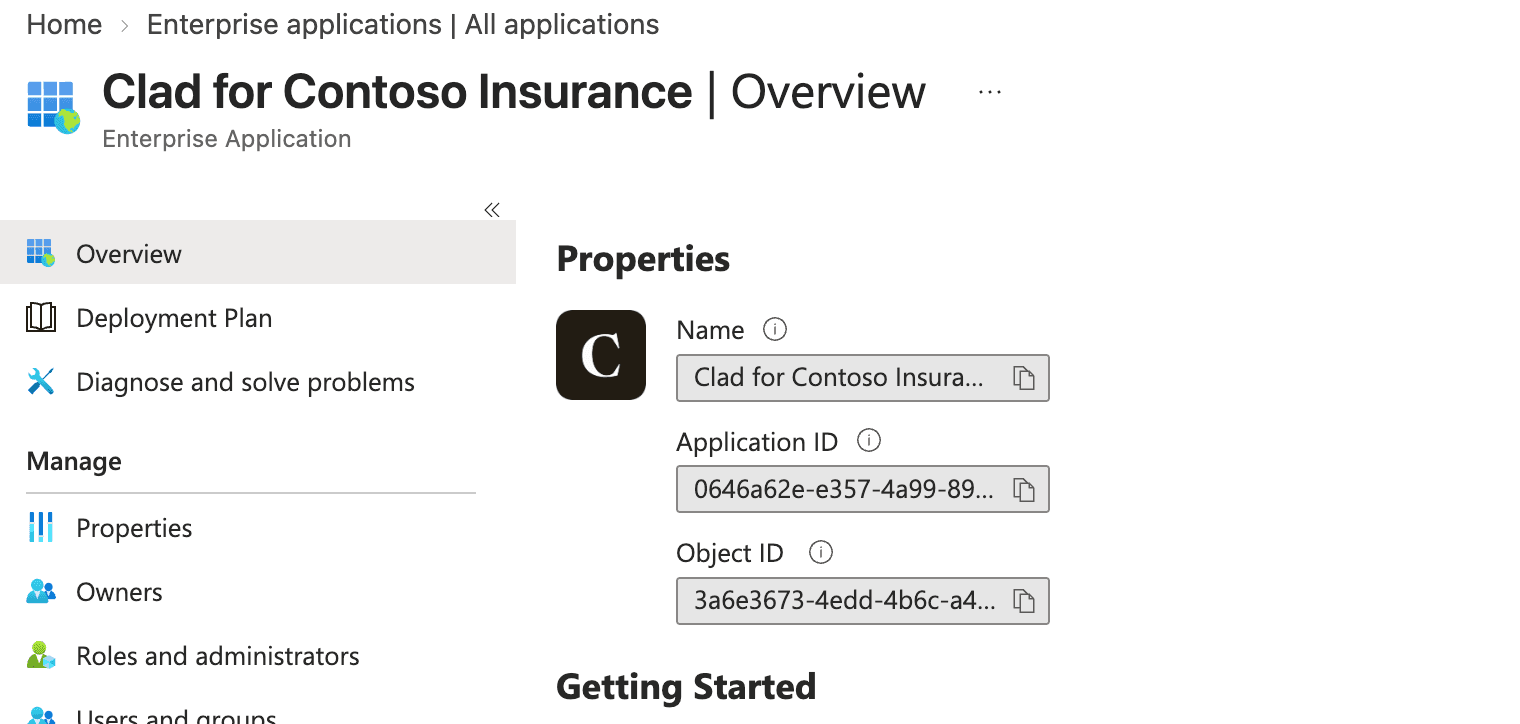
- 1Object ID: copy this value.
The screenshot is an example. Your application is named Clad for your organization's name and has its own application ID and object ID.
$CladAppId = '<Clad application ID>'$CladObjectId = '<Clad object ID>'Connect-ExchangeOnlineNew-ServicePrincipal -AppId $CladAppId -ObjectId $CladObjectId -DisplayName 'Clad'-DisplayName is a label used only inside Exchange. It does not need to match the name shown in
Microsoft Entra ID.
Scope mail access to the group
$CladAppId = '<Clad application ID>'$Group = '<group-address>'Connect-ExchangeOnline$GroupDn = (Get-DistributionGroup $Group).DistinguishedNameNew-ManagementScope -Name 'Clad Mail Access' -RecipientRestrictionFilter "MemberOfGroup -eq '$GroupDn'"foreach ($Role in 'Application Mail.ReadWrite', 'Application Mail.Send') { New-ManagementRoleAssignment -App $CladAppId -Role $Role -CustomResourceScope 'Clad Mail Access'}Verify
For a group member, both roles report InScope : True. For anyone else, False.
$CladAppId = '<Clad application ID>'Connect-ExchangeOnlineTest-ServicePrincipalAuthorization -Identity $CladAppId -Resource '<employee-1>'Test-ServicePrincipalAuthorization -Identity $CladAppId -Resource '<outside-mailbox>'Allow time to propagate
New role assignments and group membership changes can take up to two hours to take effect. A
group member showing InScope : False shortly after setup usually resolves on its own.
What Clad does with this access
| Access | Used for |
|---|---|
Read (Application Mail.ReadWrite) | Reading new messages and attachments in group members' inboxes |
Write (Application Mail.ReadWrite) | Creating the draft of an approved email immediately before sending it, so replies stay in the correct conversation |
Send (Application Mail.Send) | Sending mail from the responsible employee's own mailbox, only after one of your employees approves each email. Clad never sends automatically |
Next steps
Clad is operated by Docshield Inc. · Wilmington, DE · New York, NY